
Teamwork: feed, tasks and vessel discussions
Updated November 24, 20264 min read
On this page
Teamwork is the shared workspace for colleagues of one organisation on the ENTERPRISE plan: vessel discussions with @mentions, tasks with due dates, a responsible person for each vessel and a team activity feed. It lives in the Team section of the account menu and in the vessel card, next to your fleet, not in a separate messenger.
Where to find it
Open Team from the account menu. There are three tabs at the top:
| Tab | What it shows |
|---|---|
| Feed | What happened in the team: mentions, tasks, responsible-person changes, vessel messages |
| Tasks | Assignments with a due date and a linked vessel |
| People | Members, roles and invitations (see Team and access) |
Each tab carries a counter: Feed shows new events for you, Tasks shows open tasks assigned to you. An orange Tasks counter means some are overdue.
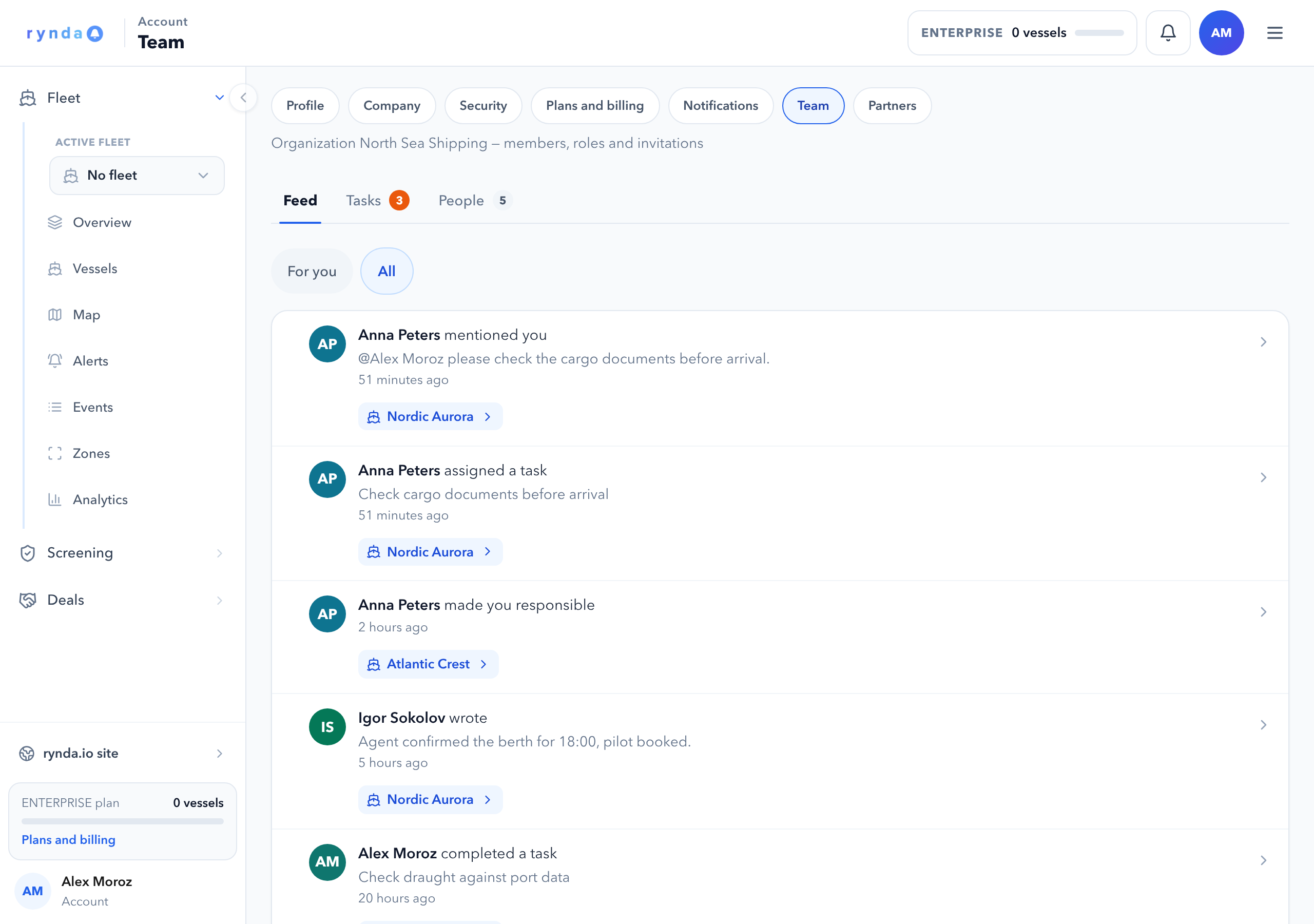
Team feed
The For you filter keeps the events that concern you: someone mentioned you, gave you a task or made you responsible for a vessel. All shows the whole team's work. A feed row opens the vessel discussion; the vessel chip under the row opens the fleet map centred on that vessel.
How to discuss a vessel with colleagues
- Open the vessel card in Vessels and press Discuss in the Team block (or press a feed row).
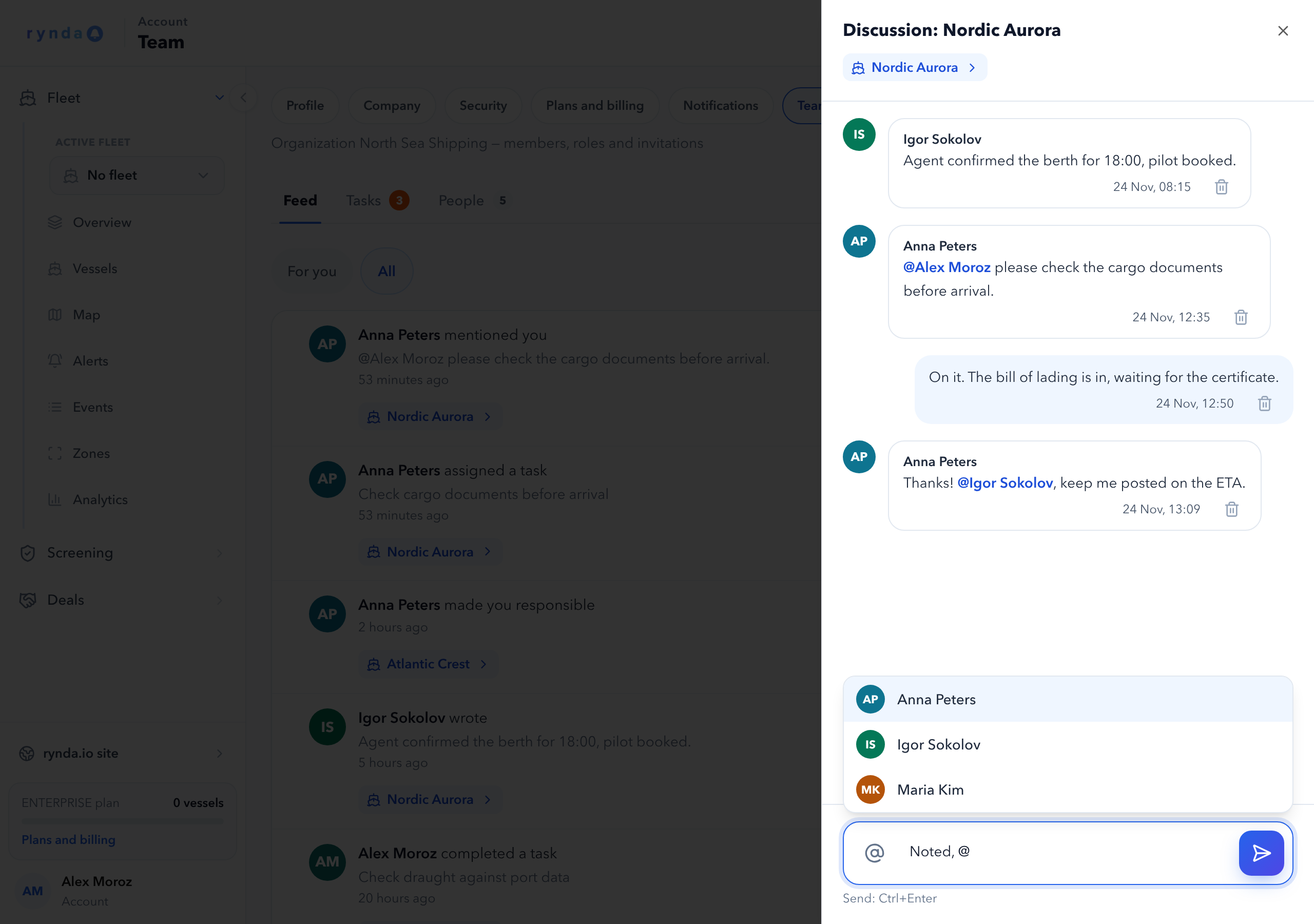
- The discussion opens on the right. Type in the field at the bottom.
- To bring in a colleague, type @ or press the @ button and pick a person from the list. The name is highlighted, and the colleague sees the event under For you.
- Send with the arrow button or Ctrl+Enter (⌘+Enter on a Mac).
You can delete your own messages; owners and admins can delete any message. Deleting asks for confirmation. If a message fails to send, the text stays in the field and a note appears above it.
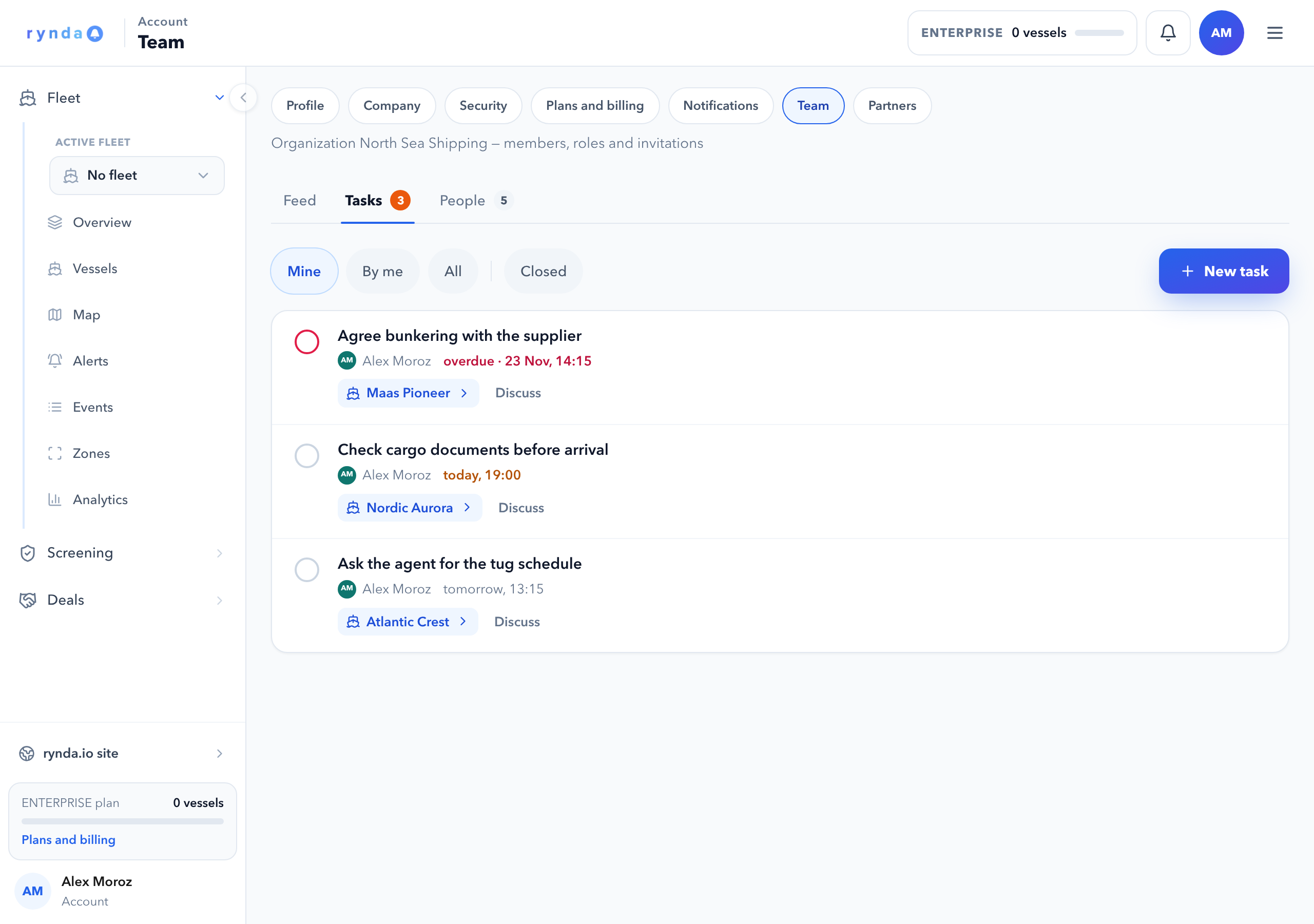
Tasks
A task says what to do, who does it, by when and for which vessel.
- On the Tasks tab press New task, or press Task in the vessel card so the vessel is filled in for you.
- Fill in What to do and, if needed, Details.
- Under Assign to pick a colleague (you by default) or Nobody yet.
- Under Due pick No date, Today, Tomorrow or In a week, then press Create task.
Filters above the list: Mine, By me, All and the Closed toggle. The circle on the left closes a task: the tick appears at once and the row leaves the open list. Use the same circle under Closed to reopen it. Overdue dates are red, today's are orange. Tasks you created open for editing when you press their text; owners and admins can edit any task.
Responsible person and who is viewing the vessel
The Team block in the vessel card shows:
- the responsible person. A member takes a vessel with Take it and drops it with Release; owners and admins assign anyone with Assign;
- which colleagues are viewing the vessel now ("Viewing now: …"); a green dot on an avatar means the person is online;
- the latest discussion message and the vessel's open tasks.
What each role can do
| Action | Owner, admin | Member | Viewer |
|---|---|---|---|
| Read the feed, discussions and tasks | yes | yes | yes |
| Write in discussions, create tasks | yes | yes | no |
| Take a vessel | yes | yes | no |
| Assign a responsible person | yes | no | no |
| Delete others' messages, edit others' tasks | yes | no | no |
Viewers cannot be given tasks: their access is read-only.
Which plan
Teamwork is part of the ENTERPRISE plan together with the shared fleet and roles. On FREE and PRO the Team section offers an upgrade to ENTERPRISE. Seat pricing is in ENTERPRISE plan.