My Fleet turns watching into a process: Analytics measures the fleet's work across port calls and voyages, Events collects fired alerts, and cargo for your fleet is matched in the Deals space.
What Analytics shows
The section lives in your dashboard under Fleet → Analytics and comes with the PRO and ENTERPRISE plans. On the free plan its place is taken by 30-day voyage and port-call counters for your fleet and a link to the plans or to the PRO trial.
The period is 7, 30 or 90 days, with a per-vessel filter and a delta against the previous period. The delta is shown when the whole previous period is on file. Two tabs:
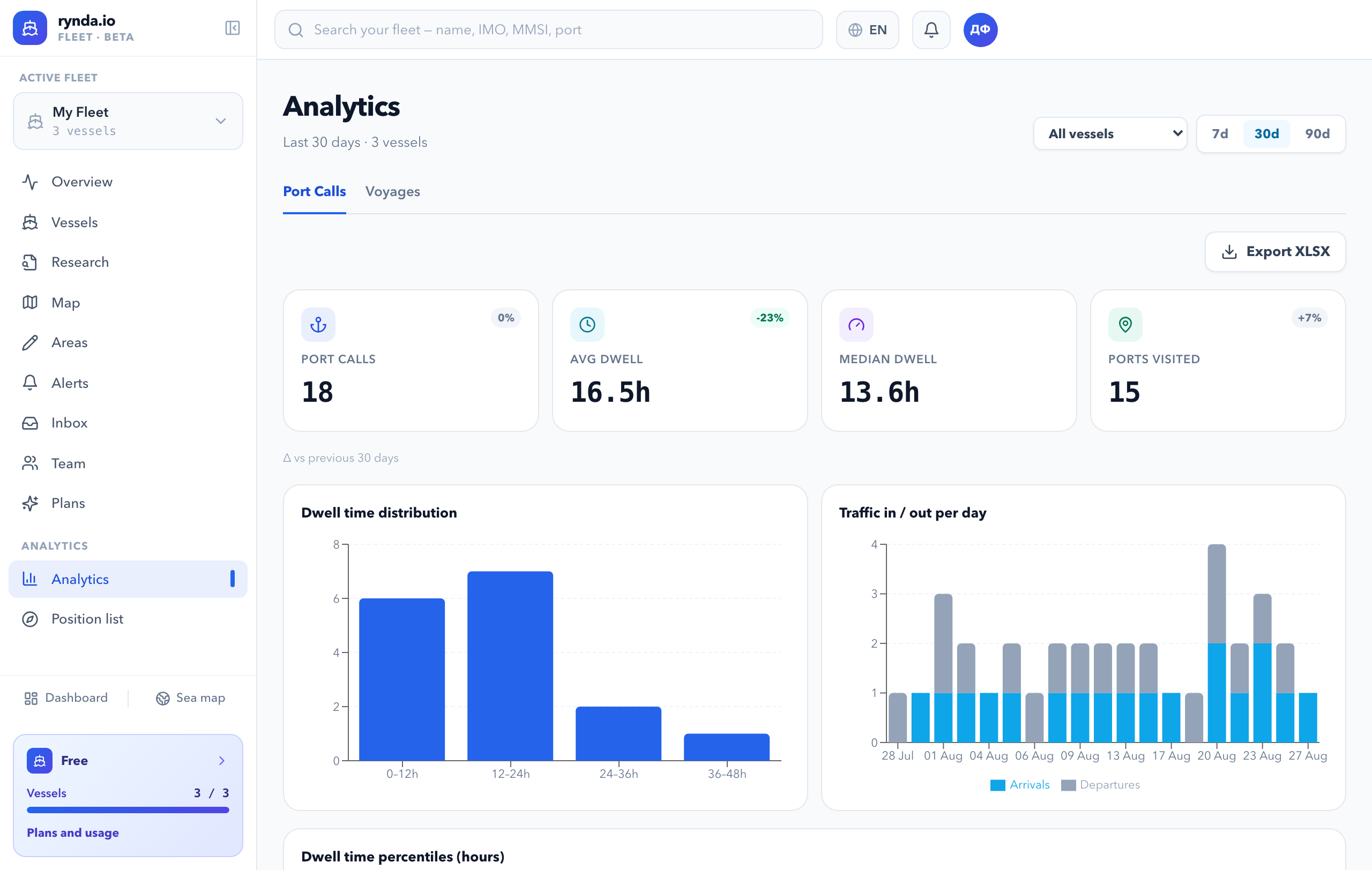
Port calls:
- Summary: port calls, average and median time in port, distinct ports visited.
- Charts: dwell-time distribution, arrivals/departures by day, dwell percentiles in hours.
- The Port time over allowance block: stays longer than your allowance and a demurrage estimate — how to use it is described below.
- Per-port and per-vessel efficiency tables: calls, average dwell, P50/P90, last call. Clicking a port unfolds the voyages through it — those that left the port or arrived at it within the period.
Voyages:
- Summary: voyages, completed, distance in miles, average speed, laden/ballast split, on-time share, utilization, open tonnage-days.
- Utilization is the share of the period the vessels spent under way; days under way and idle days in port are shown next to it. Time is counted strictly inside the period: a voyage that began earlier counts with its part, and a voyage or a stay in progress counts up to the present moment.
- A per-vessel table: route, departure, distance, speed, load state, duration, ETA marked on time / late / early.
- A "Fleet vs market" open-tonnage benchmark and an XLSX export.
With no vessels in the fleet, or no calls in the period, the section says so plainly instead of showing zeros.
Vessels frozen over the plan limit are left out of the figures, as in the rest of the fleet sections.
How far back the lists go
The summary figures and charts cover the whole selected period on both plans. The row-by-row lists — voyages, voyages through a port, stays over allowance — follow the history window of the plan:
|
PRO |
ENTERPRISE |
| Summary and charts |
the whole period |
the whole period |
| Voyage and stay lists |
the last 21 days |
the whole period |
When a list holds more than 500 voyages, the screen keeps the latest 500 and the full list is in the XLSX file. The totals still cover every voyage.
How to measure port time over allowance
- Open Fleet → Analytics, the Port calls tab, and pick a period.
- In the Port time over allowance block set the allowance in hours. The default is 72.
- Enter the demurrage rate in dollars per day.
The block shows how many stays ran over the allowance, how many hours they added up to, and a money estimate — in total and for each call. Vessels that are over the allowance right now are marked "in port now": their hours keep growing. The allowance and the rate are remembered in your browser.
This is an estimate from time inside the port zone: charter-party terms, notice of readiness and laytime exceptions are not applied. For a calculation from the documents, use the demurrage calculator.
What the XLSX files contain
The Export XLSX button sits on both tabs. The file covers the selected period and follows the per-vessel filter.
| Tab |
Sheets in the file |
| Port calls |
By port, By vessel, Traffic (arrivals and departures by day), Dwell distribution, Over allowance (the allowance, the totals and the stays row by row) |
| Voyages |
Voyages — one row per voyage: vessel, departure and arrival ports and times, status, distance, speed, laden state, duration, ETA delta; Summary — the totals for the whole period |
Numbers and dates are stored as numbers and dates, so columns can be summed and sorted. Times in the file are UTC, as the column header says; on screen the same times are shown in your device's time zone.
What Events shows
A feed of every delivered alert: All / Unread / Read tabs, filters by vessel, event type, dates and status, sorting by importance. The Export CSV button exports up to 5,000 events under the current filters; when there are more, the page says so before the download. Each team member has their own alert rules and their own feed. An empty feed points to the next step — the "Set up alerts" button. Delivery channels (Telegram, email, in-app) work on every plan; which event types come with which plan is covered in alert types.
The bridge to deals
In Deals → Open tonnage (the "My fleet" switch) a vessel row offers "Find cargo" — compatible cargo from the marketplace; the "Find vessel" button there works the other way, listing vessels from brokers and shipowners. In Deals → Cargo and tonnage, the "Near your vessels" block matches cargo by type, DWT, area and laycan. An event ("the vessel discharged") turns straight into the next voyage.
See also