"Who sails this route" is a block on the cargo board that shows the vessels, and the companies that manage them, which have already sailed your route: from the load port to a discharge port or country.
The list is built from vessel port call history since 1 May 2026. When direct voyages are few, the block adds vessels from nearby ports and the same region and labels where each one comes from.
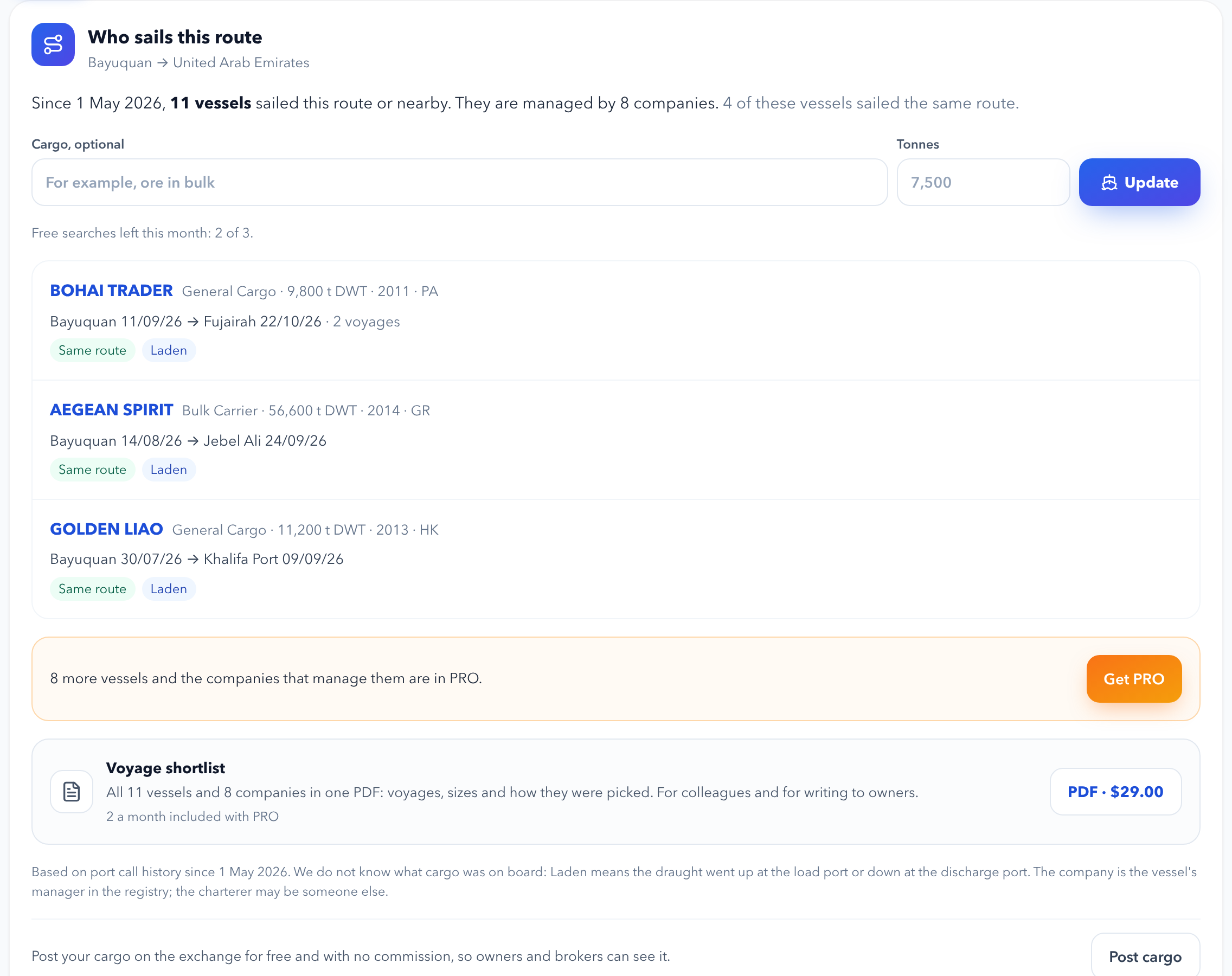
The block appears on the Cargo board when both search fields are set: From and To. The To field takes a port or a country, for example "UAE".
| Label | Meaning |
|---|---|
| Same route | loaded at your port or next to it and discharged at the port or country you need |
| Nearby ports | loaded or discharged within 300 nm of your ports |
| Same region | loaded and discharged in the same sea areas |
| Calls at the load port | the right size and calls at your load port, but has not sailed this route yet |
| Plan | What you see |
|---|---|
| Not signed in | how many vessels and companies sailed the route, and how many of them on the same route |
| Free and Personal | the top three vessels without companies, 3 searches per calendar month |
| PRO and Enterprise | the full vessel list, the Companies tab, no search limit |
Repeating a search for the same route and cargo within the month does not use up the limit. The counter resets on the 1st.
No matching vessels? Post your cargo on the board for free, so owners and brokers can see it.
Under the results, the block offers a Voyage shortlist: the same route, cargo and quantity as one PDF document, ready to forward to a colleague or client.
The shortlist contains:
To get a shortlist:
The PDF arrives by email, usually within a few minutes, and stays in your account under Screening → Reports and dossiers → My reports.
| Plan | Voyage shortlist |
|---|---|
| Not signed in | not available |
| Free and Personal | $29 per shortlist |
| PRO and Enterprise | 2 shortlists a month per organisation included, then $29 |
During the PRO trial, the shortlist is paid for separately. Shortlists included in the plan are used by the organisation owner. Ordering the same route, cargo and quantity again within 24 hours opens the shortlist you already have.
